Replenishment Lists
In Afosto, replenishment lists help you automate and optimize your inventory management. This feature automatically identifies which products need restocking based on your warehouse settings, such as the reorder point and the optimal stock level. This prevents shortages, minimizes excess stock, and keeps your supply chain running smoothly.
What are replenishment lists?
A replenishment list is an overview of products whose stock has dropped below the reorder point. The system calculates a replenishment advice: how much you need to order or transfer to bring your stock back to the optimal level, taking your warehouse settings and order units into account. The list is advisory: ordering from a supplier or transferring stock from another warehouse is a follow-up action you carry out yourself.
How do replenishment lists fit into Afosto?
Replenishment lists are part of the Purchase module in Afosto. They work together with other features, such as product management, purchase orders, and receiving lists. The process looks like this:
- Configure your warehouse settings: set the reorder point and optimal stock level per product, warehouse, and company.
- Generate a replenishment list: instantly see which products need attention.
- Take action: order new stock from your supplier or transfer products between warehouses.
- Process the list: mark the items as processed once the stock has actually been received or transferred.
Warehouse settings for the replenishment list
Replenishment lists are based on the warehouse settings configured per product. Configure these first; otherwise the recommendations will be incomplete or incorrect.
Two values determine the replenishment list:
- Reorder point: the stock level at which you want to reorder. When a product's current stock drops below this point, it appears on the replenishment list.
- Optimal stock level: the ideal quantity to keep in stock. The replenishment list calculates how much is needed to bring the stock back to this level.
You can also configure a safety stock (a buffer for unexpected demand or supply delays) and a maximum stock level (the upper limit of what you want to store in a warehouse) per product. These two values play no role in the replenishment calculation.
Note: multiple companies can use the same warehouse in Afosto. By configuring settings per company, stock levels and ordering preferences stay separated per business. This is optional and mainly relevant for complex organizations; in most cases, only your own business uses the warehouse.
Generating a replenishment list
You generate a replenishment list to see which products need restocking. Here's how:
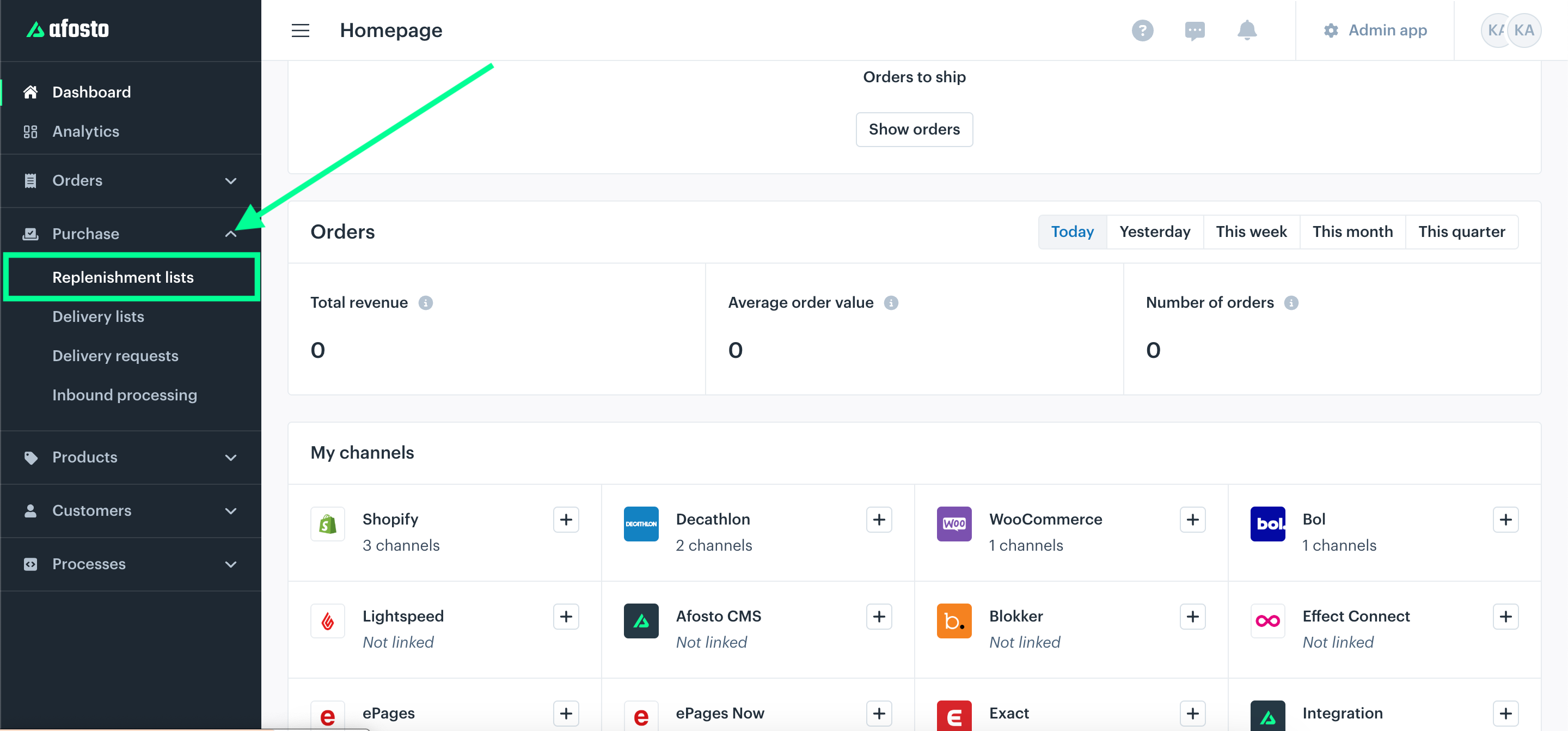
- Go to Purchase in the left sidebar of Afosto and click Replenishment Lists. You can also get there via the Replenishment advice button at the top right of the product grid.

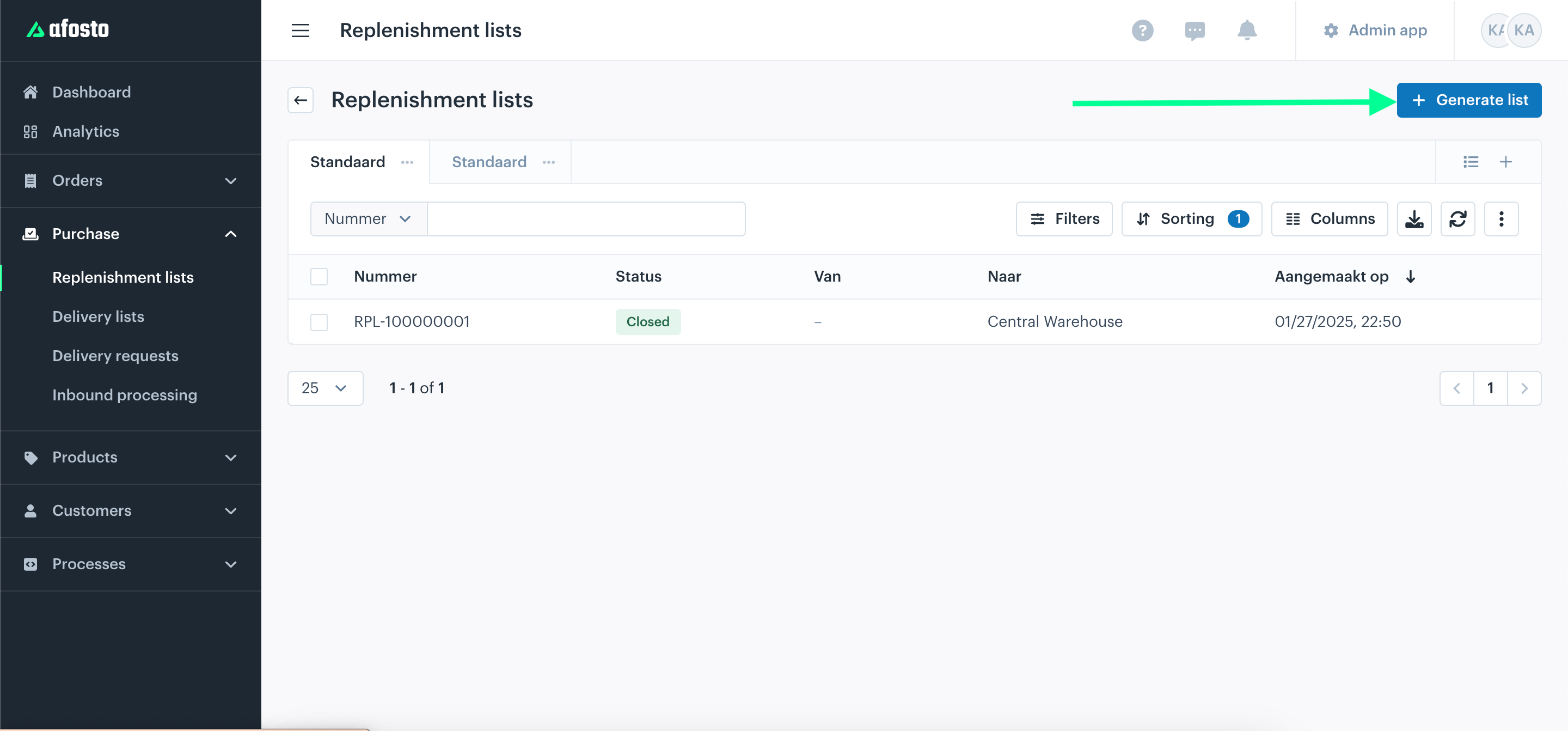
- Click the + Generate List button at the top right.
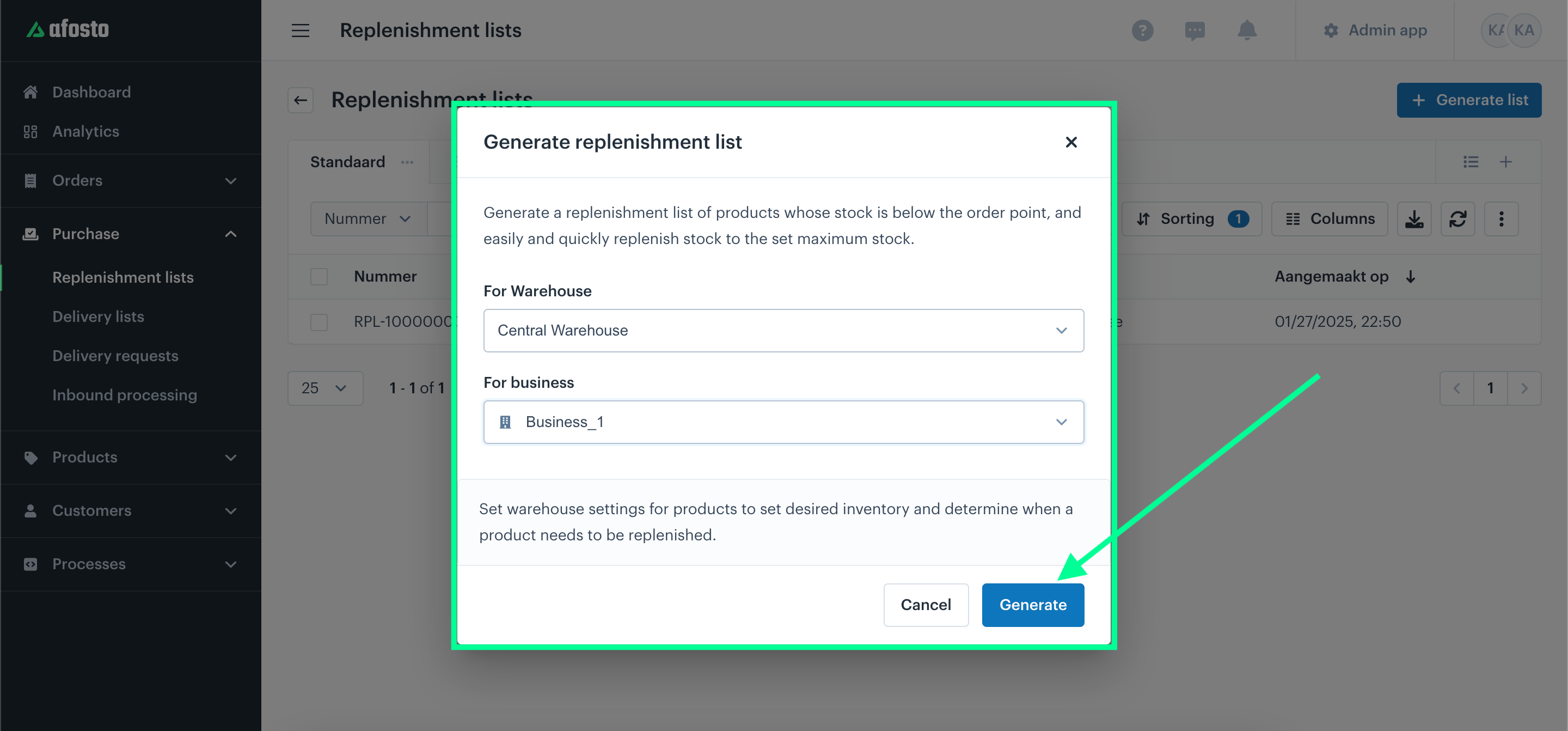
- Choose the Warehouse and Business you want to replenish stock for.
- Optionally choose under Stock sourced from where the stock should come from (see below).
- Optionally add filters to limit the list, for example by brand.
- Click Generate.
Stock sourced from (optional)
When generating a list, you can optionally specify where the stock should come from. The list will then only include products that are available there:
- Not specified: the list is generated purely based on reorder point and optimal stock level, regardless of where the stock comes from.
- Supplier: only products available at the selected supplier are included on the list.
- Internal warehouse: you replenish from another (internal) warehouse. Items that are not in stock in that internal warehouse are ignored and will not appear on the list.
The stock source only determines which products appear on the list. The follow-up action — ordering from the supplier or transferring stock — is something you carry out yourself.
Filters
Use filters to limit which products appear on the replenishment list, for example by brand. Click Add filter when generating the list.
What do you see in the list?
The system automatically shows products whose current stock has dropped below the reorder point. You'll see:
- Which products need restocking.
- How much to replenish per warehouse and company (Reorder column).
- What is already on other replenishment lists (On Replenishment Lists column) and what is on its way (Incoming column).
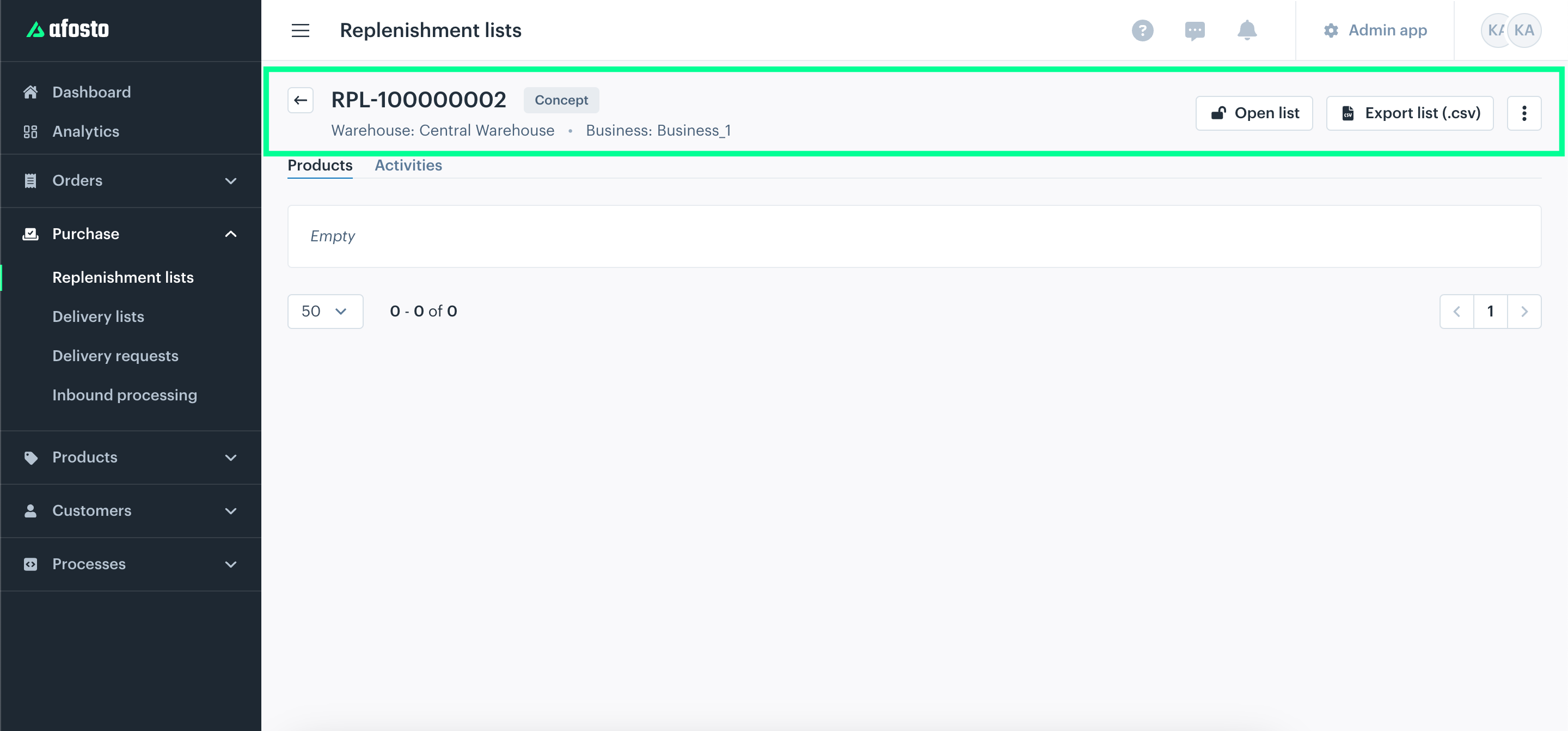
Review the suggested quantities and adjust them where needed.
Statuses of a replenishment list
A replenishment list goes through three statuses:
- Concept: right after generating. You can still review the list, remove products, and adjust quantities.
- Open: the quantities are correct and you expect to receive this stock. An open list counts as incoming stock when generating a new list, so you don't order twice.
- Processed: the stock has actually been received or transferred. The items no longer count as incoming.
Note: setting a list to processed does not update the stock itself. Stock is updated through the receipt or transfer. Only set a list to processed once the stock has actually been updated in Afosto; otherwise the same products will appear again on the next replenishment list.
Example
Say: reorder point 2, optimal stock level 10, current stock 1.
- You generate a replenishment list: the advice is 10 − 1 = 9 units.
- As long as this list is open, the advice on a new list is 0: the 9 units count as incoming.
- Once the list is set to processed (and the stock has been replenished to 10), a new advice is calculated based on the current stock.
Finishing a replenishment list
From the overview, you can process a generated list in several ways:
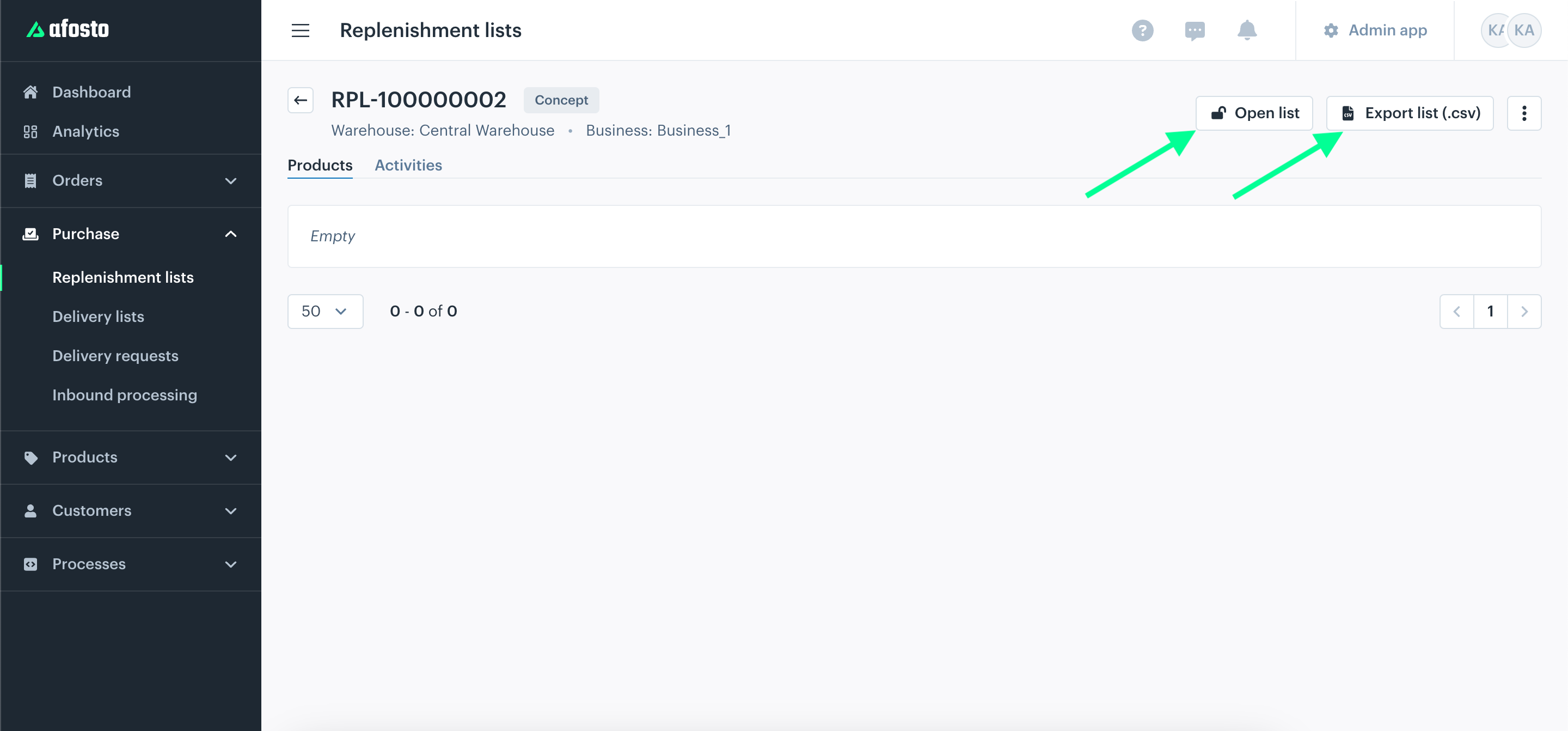
- Open the list: click Open replenishment list to review and edit the list before taking action, such as ordering from a supplier or transferring stock between warehouses.
- Process the list: set the items to processed once all products have been replenished. This marks the list as completed.
- Export to CSV: click Export list (.csv) to download the list for analysis in Excel, for example, or to share with colleagues or suppliers.
Tip: want to delete a list? Click the ellipsis icon (⋮) next to the list and select Delete.
How is the replenishment quantity calculated?
Afosto automatically calculates how much you need to replenish to bring your stock to the optimal level:
Replenishment quantity = Optimal stock level − Current stock
A product appears on a replenishment list as soon as the current stock drops below the reorder point. The safety stock and maximum stock level play no role in this calculation.
Example
Say you manage Product A in Warehouse A for Company A with the following settings:
- Current stock: 8 units
- Reorder point: 10 units
- Optimal stock level: 50 units
- The current stock (8) is below the reorder point (10), so Product A appears on the replenishment list.
- The replenishment quantity is: 50 − 8 = 42 units.
You need to order or transfer 42 units to bring the stock back to the optimal level.
Preventing duplicate orders
Afosto prevents unnecessary orders by taking two factors into account:
- Existing replenishment lists: if a product is already on another open replenishment list, you'll see this in the On Replenishment Lists column.
- Incoming stock: expected deliveries, such as products on a receiving list from a supplier or a transfer from another business, are shown in the Incoming column.
These quantities are automatically subtracted from the suggested replenishment quantity, so you only order what you actually need.
Example
Product A has a replenishment quantity of 42 units. If 10 units are already on another open replenishment list and 5 units are on their way, Afosto calculates: 42 − 10 − 5 = 27 units.
Tip: check the On Replenishment Lists and Incoming columns before placing an order.
Ordering and units
You can configure order units per product, such as selling per piece and purchasing in a fixed quantity (for example per 6 units or per crate). The suggested quantity in the Reorder column is based on this standard order unit. Afosto calculates this automatically, but you can adjust the quantity manually.
Afosto converts the replenishment quantity to the standard order unit and rounds up, so you always order in whole units.
Examples
Single units
- Replenishment advice: 76 units
- Standard order unit: 1 unit
- To order: 76 units (76 ÷ 1 = 76)
Purchasing per 6 units
- Replenishment advice: 76 units
- Standard order unit: 6 units per package
- To order: 13 packages (76 ÷ 6 = 12.67, rounded up to 13; 78 units in total)
Bulk (crates)
- Replenishment advice: 76 units
- Standard order unit: 1 crate = 24 units
- To order: 4 crates (76 ÷ 24 = 3.17, rounded up to 4; 96 units in total)
Note: due to rounding up, the ordered quantity can be slightly higher than the replenishment advice. Check whether this fits your storage capacity.
Conclusion
With replenishment lists, you automate your inventory management. The system takes reorder points, optimal stock levels, open replenishment lists, and incoming stock into account, so you only order what you need. Go to Purchase > Replenishment Lists and generate your first list.
- What are replenishment lists?
- How do replenishment lists fit into Afosto?
- Warehouse settings for the replenishment list
- Generating a replenishment list
- Stock sourced from (optional)
- Filters
- What do you see in the list?
- Statuses of a replenishment list
- Finishing a replenishment list
- How is the replenishment quantity calculated?
- Preventing duplicate orders
- Ordering and units
- Conclusion